Ordering Food using GrabFood
Step 1. Open GrabFood App
Open the Grabfood app on your mobile device, then click on food.
No need to worry about your address since I have already set it on your phone.

Step 2. Select your Restaurant
Tap on the Search bar and type which restaurant you would like to order.

In this demo, we will order from McDonalds.

After typing and selecting “search” or tapping on a suggested result. The list of nearby McDonalds and similar restaurants will populate your menu.

For this, demo, tap on McDonalds - Tanza which is Tanza’s Main Mcdonald branch.
Step 3. Select your Meal
Upon tapping on the McDonalds, the Grabfood app will now show you their menu, this is also categorized for easier searching.
In this demo, we will order a Chicken Sandwich.

Upon selecting this meal, the app will show you additional options that can go with your meal.

Tap on Add to Basket.
Step 4. Select your Meal
After selecting your meal, you can review again your basket before placing your order.
To do this, tap on view basket.
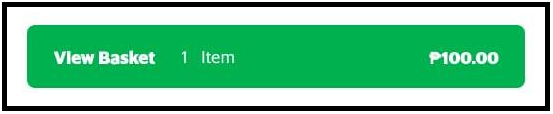
In this basket, you can edit and view all the meals you have ordered.
Step 5. Place your Order
Before placing an order, review your address, meals ordered and payment options.

To change payment options, tap on the cash icon button below payment details.
Upon being selected, a window showing payment options can be seen.

Once you have confirmed your information, you can click on place order.

This will bring a window on the status of your order, usually in a sequence of:
- Processing your food
- On the Way
Take note that you need to check your phone on the status of your order once in a while because the rider might call you for directions or is already outside
Enjoy your food!